The Map it with Google module is displayed on this page. Simply enter your address and the module uses the Google API to display a map with a marker to the address. A user simply clicks the marker and they are prompted with a popup box to get directions. Clicking "Get Directions" will take you to google maps with your business address already entered so all they have to do is enter their address to get directions. You can also specify the size of the map and whether or not to enable or disable certain controls.
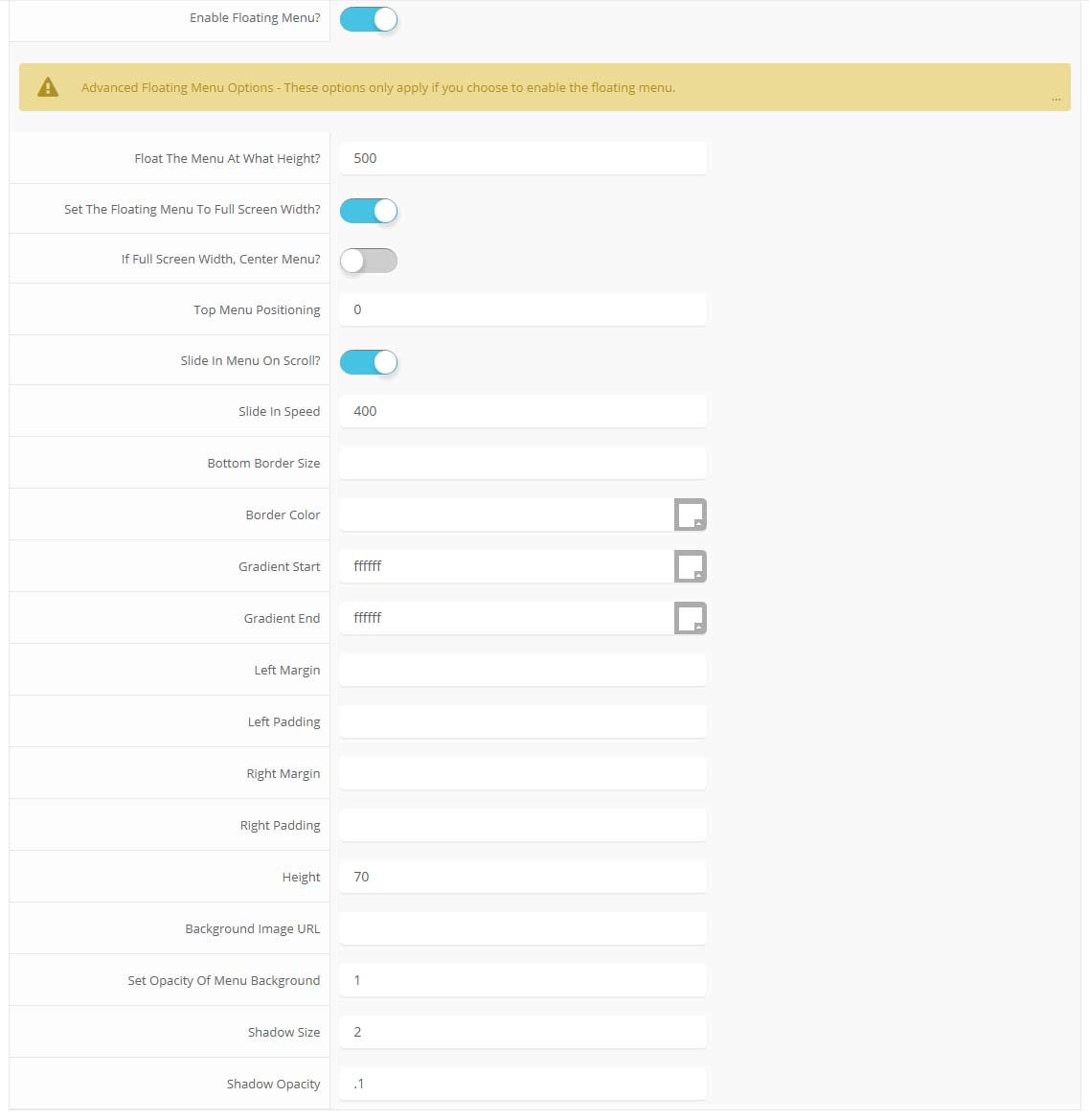
The floating menu feature is a great way for your users to easily navigate your website! The floating menu will show at the top of your browser once the screen reaches a certain point. You can determine the exact point at which this occurs via the template specific area of Vertex. NOTE: This is a Vertex addition and is not guaranteed to work with all Vertex Templates. Some custom CSS may need to be adjusted per template. This feature is not supported by IE7/8.

Features at a glance:

  • Set a background image to the menu, gradient or solid color
  • Set to snap or smooth scroll in
  • Determine at which point as you scroll down your page that the menu drops in
  • and many more features, just check out the screenshot below


Admin area of the floating menu:
parallax menu admin
Our Scroll Reveal feature is powered by the script found here: https://github.com/julianlloyd/scrollReveal.js. The script allows you to add "data-sr" to HTML elements for on page scroll animations. We recommend adding to DIVs over SPAN etc as DIVs can move vs SPAN tags just fading in. Once you add the code to a DIV refresh a page or scroll down and it will animate in. It will only do this once until you refresh the page again. The great feature about the script is you can use plain English to describe how you'd like to animate your HTML element.

Example of this in action (refresh this page if you didn't see it already):

Enter from the left and move up 50px in 1.33 seconds.
Enter from the bottom after 1 second.
Wait 2.5 seconds and then ease-in-out 100px.


Code used for the above:

<div data-sr="enter left and move 50px over 1.33s"> Enter from the left and move up 50px in 1.33 seconds. </div>

<div data-sr="enter from the bottom after 1s"> Enter from the bottom after 1 second. </div>

<div data-sr="wait 2.5s and then ease-in-out 100px"> Wait 2.5 seconds and then ease-in-out 100px. </div>

Usage:

For a lengthier explanation on this visit the following page: https://github.com/julianlloyd/scrollReveal.js
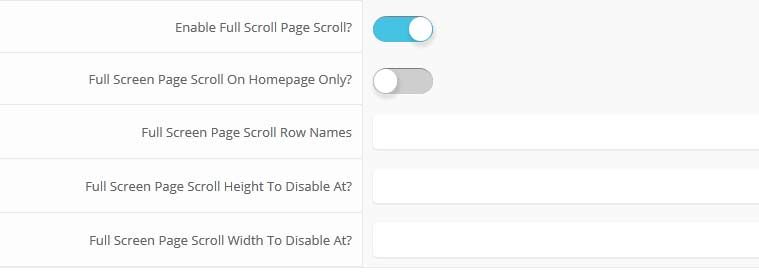
The full page scroll option takes each row of Vertex and sets it to the height of your screen. With the arrow buttons of your keyboard or the vertical scrolling of your mouse the screen will jump to the next section. Each row that has modules published to it will show as the full height of your screen. To demo this check out the homepage of this demo. You can enable on the homepage only or have it show on all pages. We recommend that it shows only on the homepage.

You can place the below code on any DIV directly as a child to <div id="s5_body_padding"> and it will make it show up full screen.

class="s5_slidesection"


The below screenshot shows the admin area under the "layout" area of Vertex. You simply start adding names for the row names and then it will be enabled. Be sure to separate them by commas. You can enable the full page scroll to just show on the homepage only.


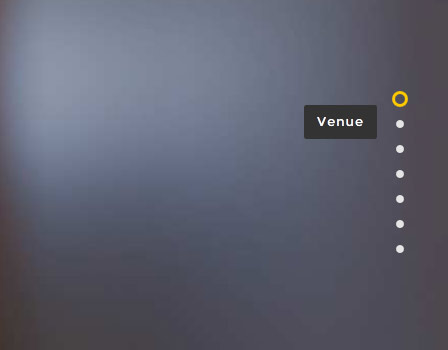
Fullscreen scroll navigation that shows on the right hand side of yoursite:
The Mail Chimp Signup module is demo'd on this page. The module is AJAX powered and allows your users to instantly signup and get added to your MailChimp list that you specify in the module admin. All you need to do is enter your MailChimp API Key and Unique List ID. The styling of the module shown here is customized specifically for this template with css overrides, and cannot be used with any other template. The same module can be used on any template, but with default or other styling in its place.

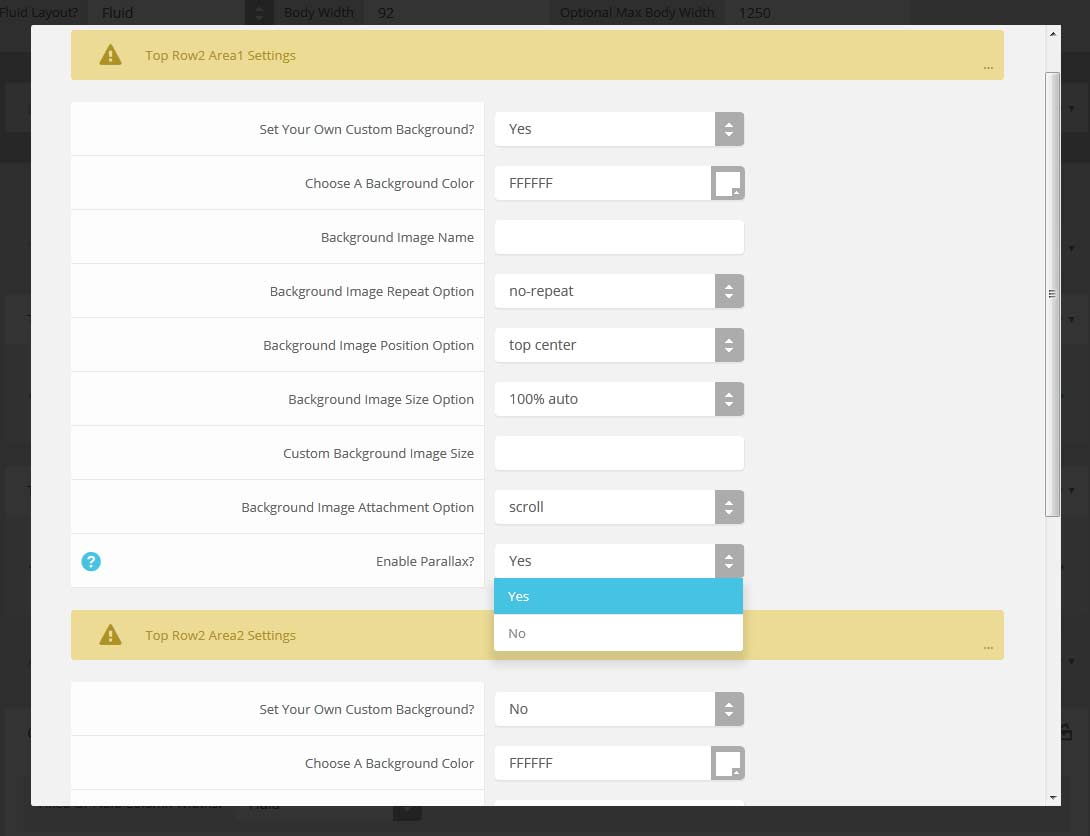
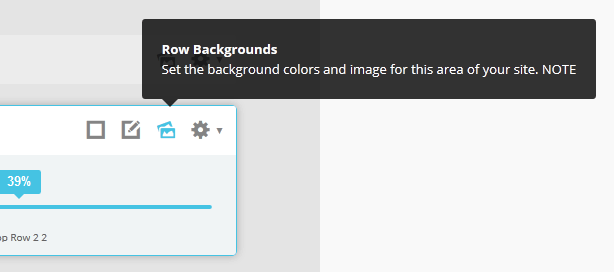
Parallax backgrounds as well as other background options are built directly into the Vertex Framework. Parallax causes the background image of an element to scroll at a different speed than your browser. For an example of this view the homepage of the Velocity template here and watch the background of the top_row1 area as you scroll down the page. This feature is found under "Backgrounds" tab in Vetex, where you can control the background for many areas of your website.

Features:

  • Set the scroll speed of the images
  • Set background repeat style
  • Set background image size, 100%, cover, contain, etc
  • Set custom backgrounds for all s5 rows in the framework.
  • Enable or disable parallax on a per row basis


Admin Area Of The Backgrounds Tab:
parallax menu admin

parallax menu admin


s5 logo

Søndre Eggevei 4
3404 Lier

 
922 64 939